Installation Tutorial

Step 1: Registration

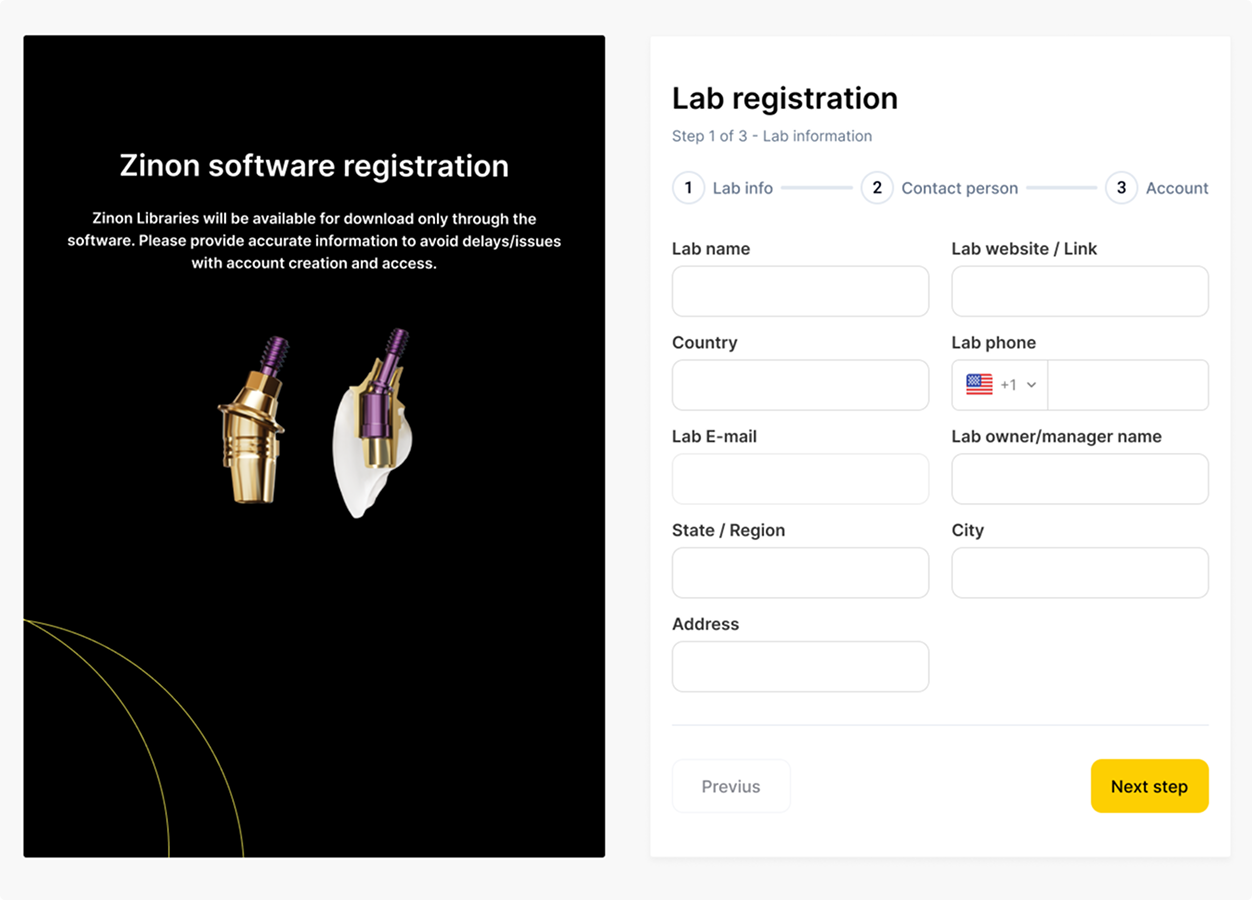
Let’s start by creating an account. You must have an account with Zinon in order to use the software

To create an account, you must complete the registration form

Step 2: Download & Installation

Download

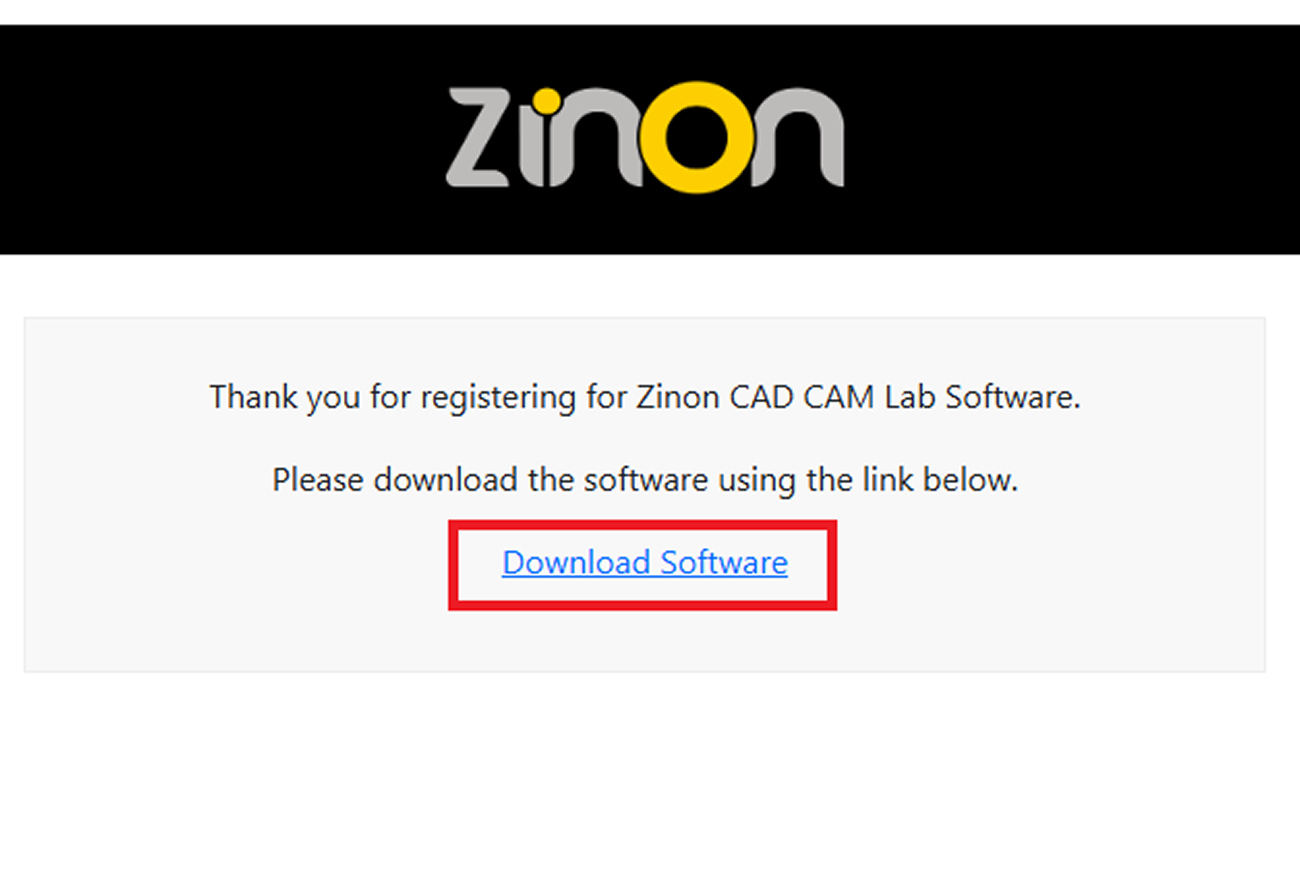
Once you complete the registration, you will be automatically redirected to download the software

Installation

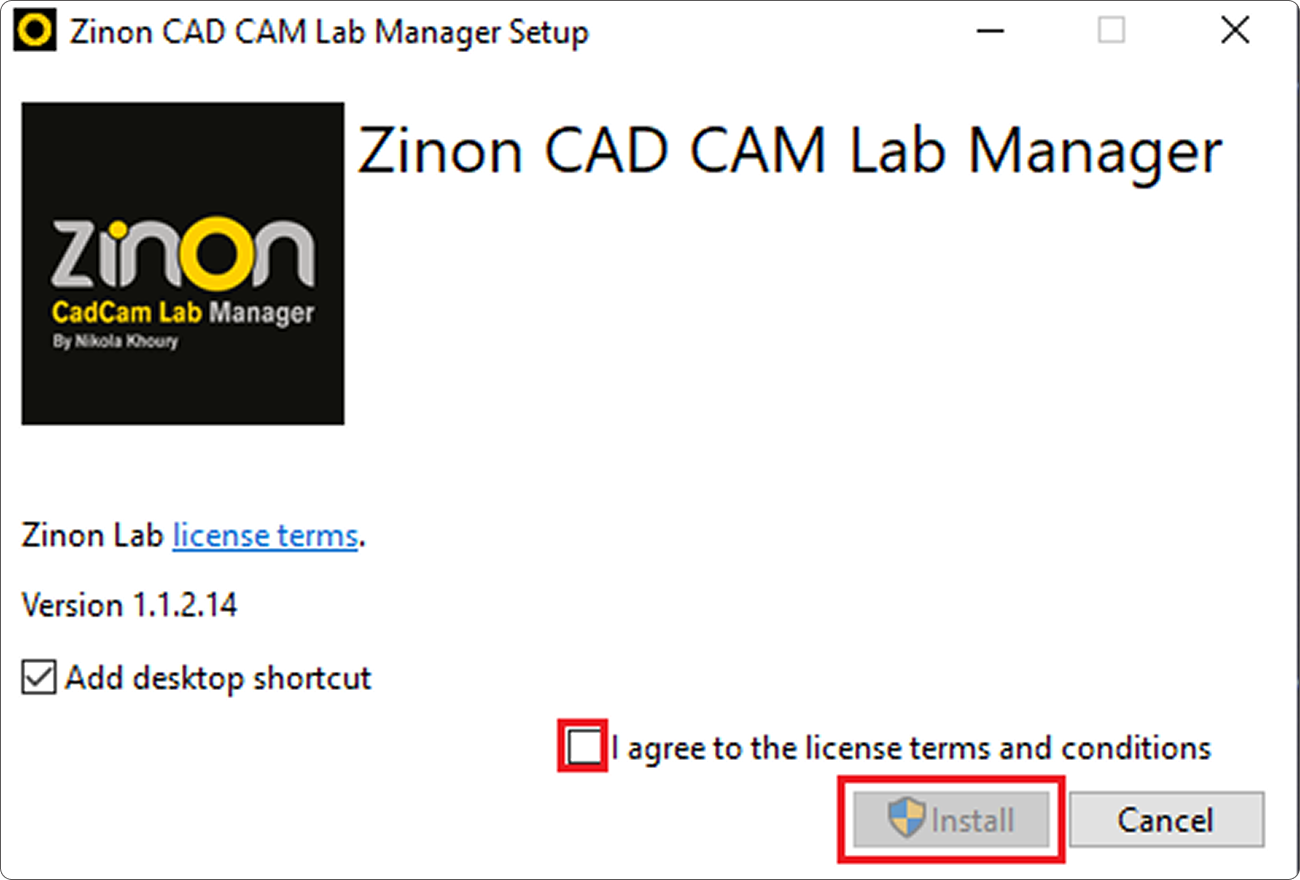
After the software has finished downloading. Run the downloaded installer, and it will install the Zinon Software on your device. It usually takes less than a minute

Step 3: Using the Software

Now that we’ve installed the software, let’s use it

Step 3: Using the Software

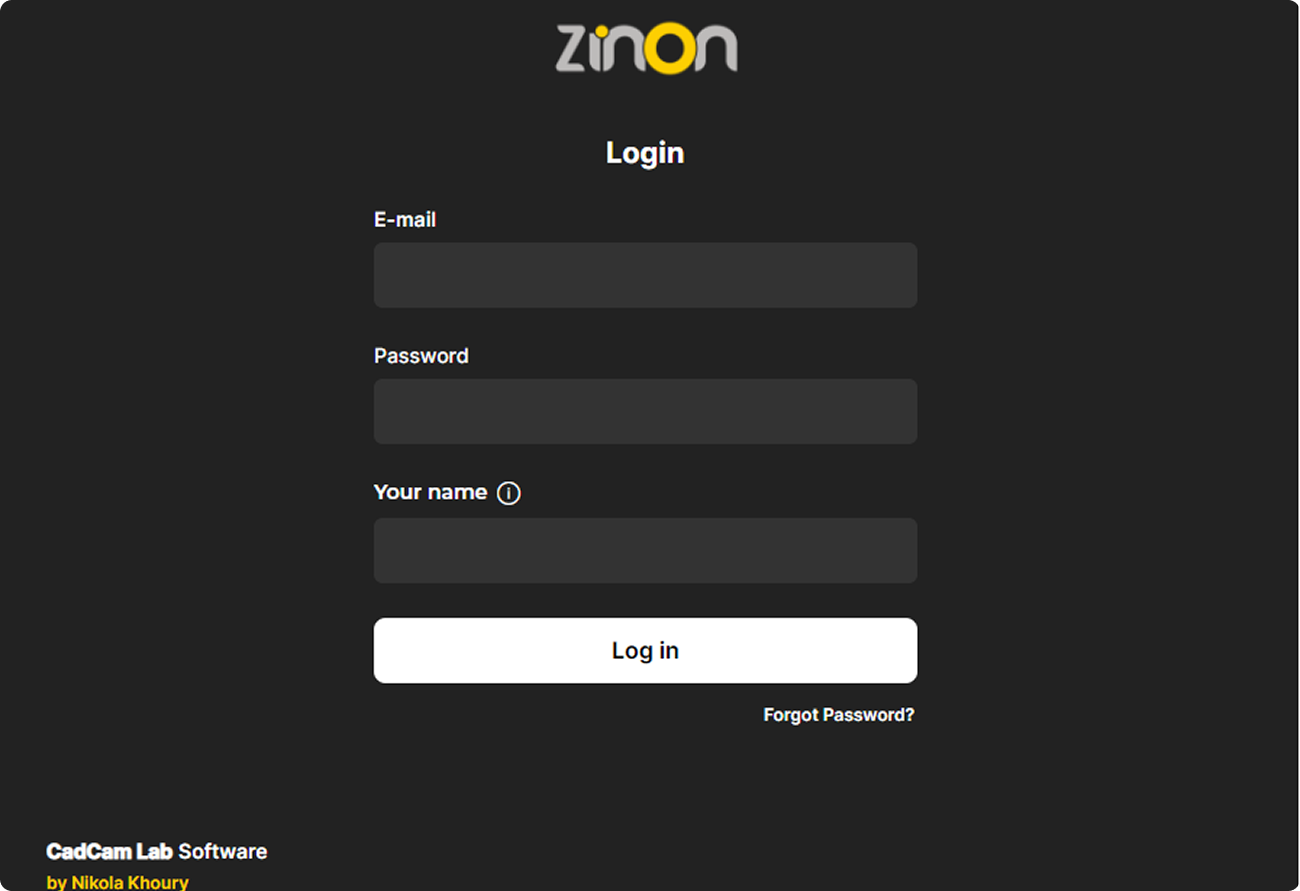
3.2. Login to your account

Login to your Zinon account using the email and password from registration (step 1)

For the name you can input any text to identify your device / work station

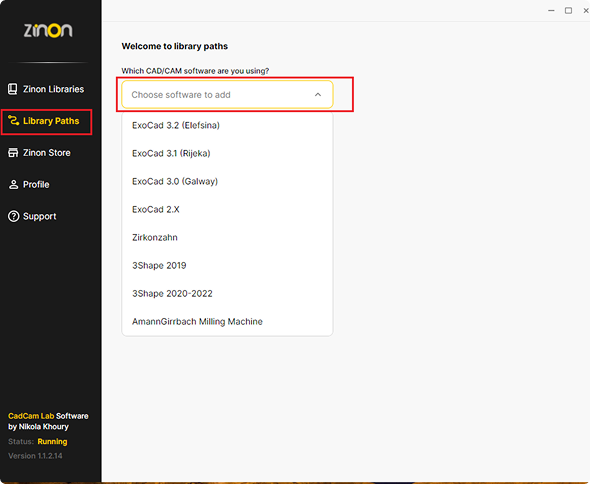
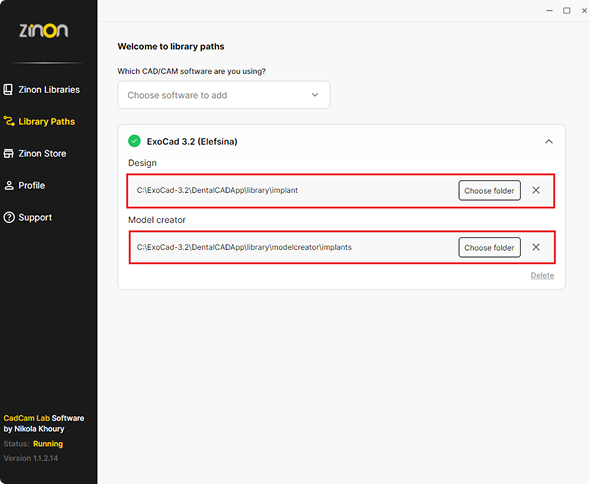
3.3. Add ExoCad library paths

We must tell Zinon Software where to load the libraries

You can add multiple softwares / versions and define the library paths for each

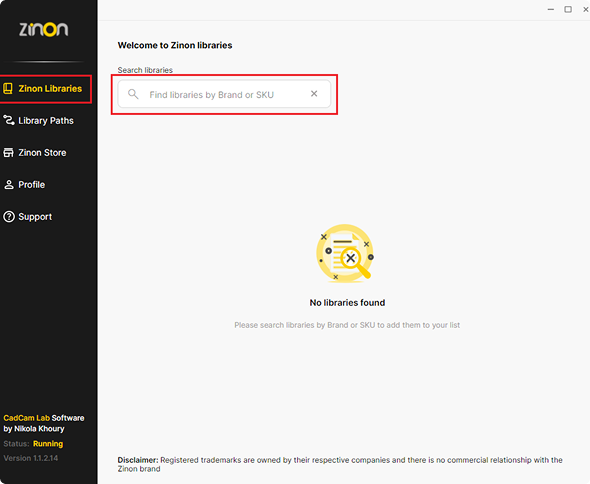
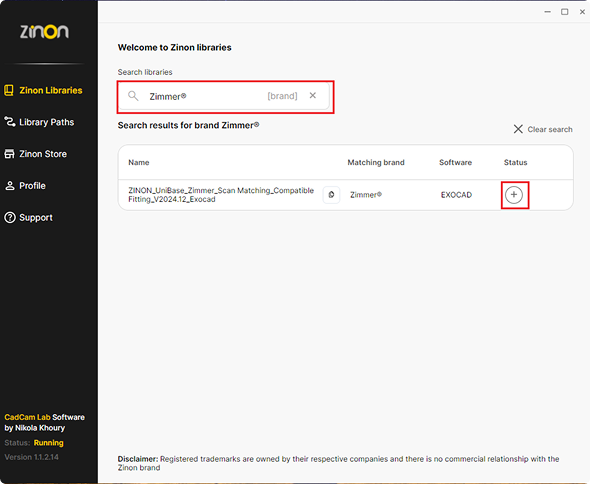
3.4. Search for and add the digital library you need

You can search for libraries by brand name or by Scan Body SKU

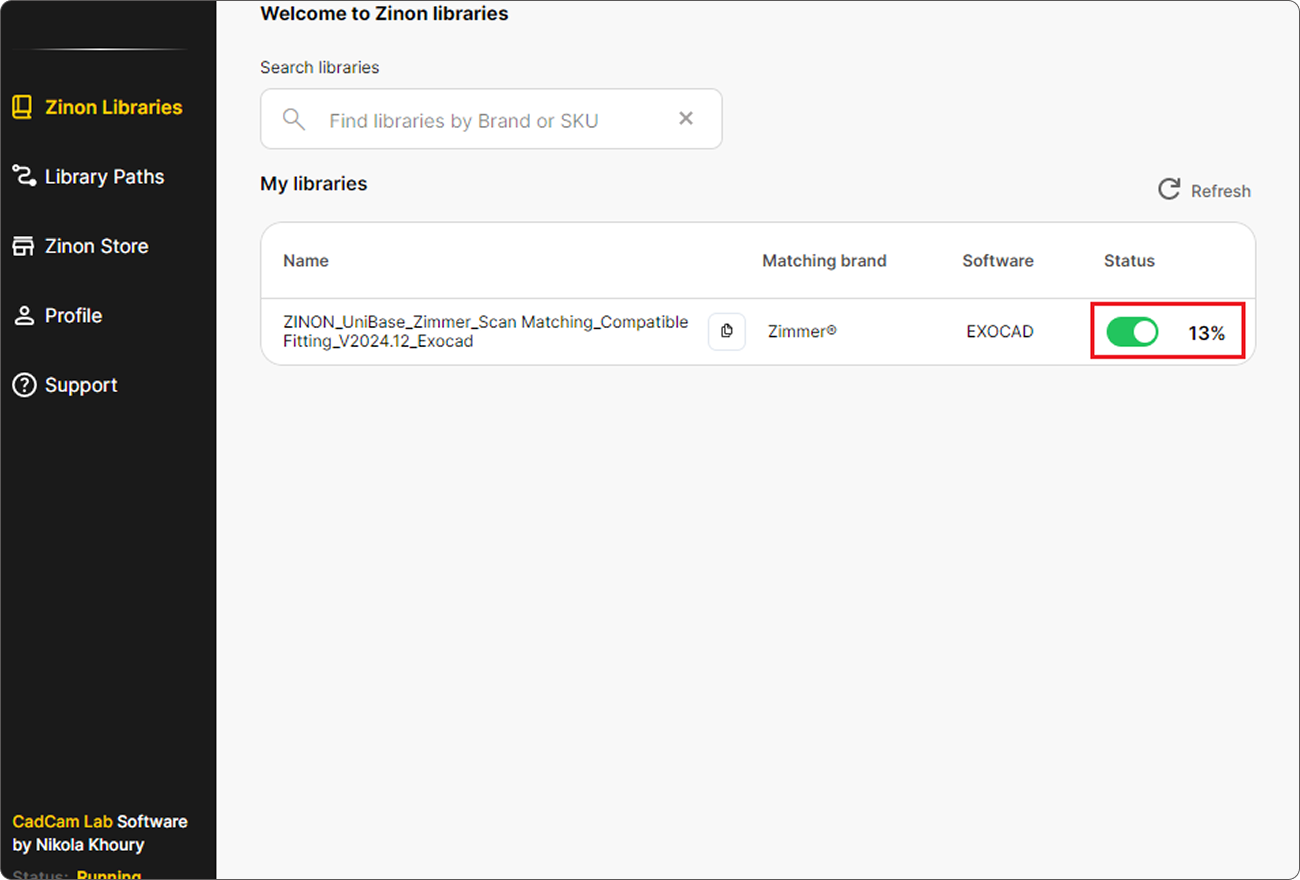
4.5. Enable/Download the library

4.6. Use the Library

That’s it! once the library download reaches 100% and your library paths are correctly defined, you will be able to use the library in your ExoCad software

Other Resources

That’s it! once the library download reaches 100% and your library paths are correctly defined, you will be able to use the library in your ExoCad software

Watch our comprehensive video tutorial for visual guidance

Need help?

Have questions or facing issues? Contact us: